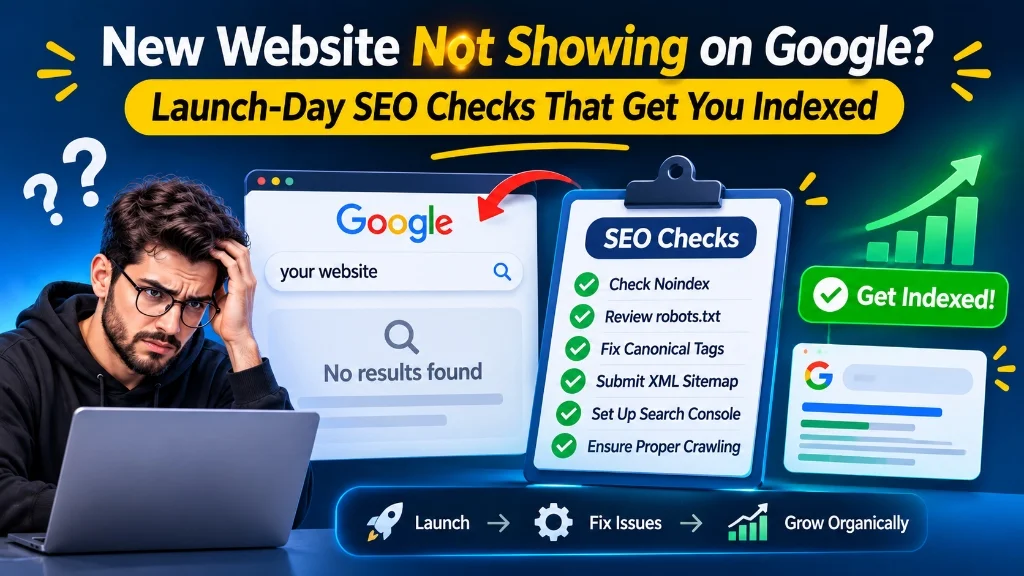
You launched the site, shared the link, and searched for your business name. Nothing. For the first few days that can be normal, because Google has to discover, crawl and evaluate a brand-new domain. But if the site is still missing after a couple of weeks, a launch setting is often to blame.
This guide walks through the checks to run on launch day and in the days after, in the order most likely to find the problem. If you are dealing with a new website not showing on google weeks after launch, a hidden configuration barrier is often responsible rather than low domain authority.
Agencies and corporate firms in professional services rely on timely search visibility to capture inquiries from their newly launched domains.
First, Find Out Whether It Is Really Missing
A normal search for your brand name is a poor test, because a new site has little reason to outrank established pages mentioning the same words. Diagnosing why a new website not showing on google fails to index requires separating crawl blocks from poor search rankings:
- Paste your full homepage URL into the URL Inspection tool in Google Search Console. It tells you whether the URL is on Google and, if not, why.
- Open the Page indexing report to see how Google has classified your URLs.
- Treat the
site:yourdomain.comoperator as a rough hint only. It is not a complete or reliable list of indexed pages.
"Not indexed" and "not ranking" are different problems. A page can be indexed and still sit far down the results, which is a content and authority issue, not a launch error.
Launch-Day Check 1: Look for a Noindex Directive
The most common launch mistake is a noindex instruction left over from development. Discovering your site not indexed after launch often traces directly back to an accidental noindex mistake that was carried over from staging:
- A meta robots tag in the page head, such as
<meta name="robots" content="noindex"> - An
X-Robots-TagHTTP response header - A CMS setting, such as WordPress's "Discourage search engines from indexing this site" option under Settings → Reading
View the page source and the response headers, and run the URL through URL Inspection, which reports a noindex if Google finds one. In Next.js, check the robots field in your metadata and any layout-level defaults, since a single setting in a root layout can apply noindex to every page.
Launch-Day Check 2: Review robots.txt
A Disallow: / rule under User-agent: * tells crawlers to stay away from the whole site. Development setups often use it deliberately. Open yourdomain.com/robots.txt and read it in full, then confirm that your important pages and the resources they need, such as scripts and stylesheets, are not blocked.
One subtlety: robots.txt controls crawling, not indexing. A blocked URL can still appear in results if other pages link to it, and Google can't see a noindex tag on a page it is not allowed to fetch. If you want a page out of search, use a noindex directive on a crawlable page, not a robots.txt block.
Launch-Day Check 3: Hosting-Specific Traps
Cloud hosting misconfigurations are a common culprit when a new website not showing on google inadvertently inherits staging environment noindex headers.
Vercel and similar platforms
Preview deployments on Vercel are generally kept out of search with a noindex header, which is the right behaviour for previews. The risk comes from mixing them up: if you point people to a preview URL, or your production domain is not correctly assigned to the production deployment, the page that visitors see may be the one carrying that protection.
Adhering to comprehensive Next.js SEO best practices ensures automated XML sitemaps, clean metadata, and production robots directives are deployed correctly across serverless hosting environments.
Password protection and staging locks
Basic authentication, IP restrictions and "coming soon" plugins stop Googlebot from seeing real content. Remove them before launch, then test with URL Inspection's live test.
Mixed domain versions
Make sure http redirects to https, and that www and the bare domain redirect to a single preferred version. Duplicated versions split signals and can confuse which URL Google chooses.
Launch-Day Check 4: Canonical Tags
A canonical tag tells Google which URL you consider the main version. Problems typical of a new launch include canonicals pointing at a staging domain, at localhost, or at a different page entirely. Google treats canonicals as a strong hint, so a wrong one can lead it to ignore the page you want indexed. Each page should normally carry a self-referencing canonical using your final domain and protocol.
Launch-Day Check 5: Submit a Clean XML Sitemap
Completing proper sitemap submission in Search Console helps Google discover URLs efficiently:
- Generate a sitemap that lists only live, canonical, indexable URLs returning a 200 status.
- Reference it in your robots.txt file and submit it in the Sitemaps report in Search Console.
- Remove redirected, noindexed and broken URLs from it, since mixed signals make the file less useful.
- Check the report for fetch or parsing errors after submission.
Launch-Day Check 6: Set Up Search Console Correctly
Verify the site as a Domain property if you can, since it covers all protocol and subdomain variants in one place. If you use a URL-prefix property instead, make sure it matches the exact version of your site that loads. Looking at the wrong property is a common reason people see an empty report.
Once verified, inspect your homepage and a few key pages, fix anything the tool reports, and use "Request indexing" for priority URLs. Requests are rate-limited, and repeating them for the same URL does not speed things up.
Diagnosing persistent coverage errors and understanding why Google is not indexing your website clarifies the difference between discovered and crawled exclusion statuses.
Launch-Day Check 7: Make Sure Google Can Reach and Read Pages
Even when nothing is blocked, pages can be hard to discover or interpret:
- Internal links: Pages with no links pointing to them are difficult to find. Link every important page from your navigation or from related pages using standard
<a href>elements. - Rendering: If content appears only after JavaScript runs, check the rendered HTML in URL Inspection's live test and confirm the text and links are present. Server-rendered or statically generated pages reduce this risk.
- Status codes: Key pages should return 200. Watch for accidental 404s, long redirect chains and soft 404s.
- Server reliability: Repeated errors or timeouts can reduce how often Google crawls.
Give Google Reasons to Visit
Technical correctness removes obstacles, but a new domain also needs signals that it is worth crawling:
- Links from other sites: A few relevant links from established sites, directories or partners can help Google discover you sooner. Quality matters more than quantity, and buying links violates Google's spam policies.
- Real content: Pages with substance and a clear purpose are more likely to be kept in the index than thin or duplicated ones.
- A clear structure: Logical navigation and consistent internal linking make the site easier to crawl and understand.
- Consistent business details: If you serve a local market, keep your name, address and phone number consistent across your site and listings.
Social posts and profile links may help people find you, but Google's documentation does not treat them as a reliable indexing mechanism, so do not count on them.
How Long Should You Wait?
While indexing patience is necessary, a new website not showing on google after three weeks typically indicates an actionable technical error in robots directives or canonical setup.
There is no guaranteed schedule. New domains can appear within days, while others take weeks, and not every page on a site is necessarily indexed. If the technical checks above are clean, give it time while continuing to publish useful content and earn legitimate links. If the Page indexing report shows an error status, such as "Blocked by robots.txt" or "Excluded by 'noindex' tag," treat it as a specific problem to fix, not a reason to wait.
A Quick Launch Checklist
Before launch:
- Remove noindex tags, headers and CMS discouragement settings
- Remove password protection and "coming soon" locks
- Confirm robots.txt allows crawling
- Set self-referencing canonicals on the live domain
- Redirect http to https and pick one www or non-www version
On launch day:
- Verify the domain in Search Console
- Submit the XML sitemap
- Inspect the homepage and key pages with the live test
- Request indexing for priority URLs
Following a structured technical SEO checklist for modern websites provides an end-to-end audit for headers, canonicals, and rendering across complex builds.
Our dedicated technical SEO and performance service performs forensic launch audits to resolve indexing blockers and accelerate initial crawl cycles.
Frequently Asked Questions
How long does it take for a new website to appear on Google?
Timing varies from a few days to several weeks. A clean technical setup, an active XML sitemap, self-referencing canonicals, and a few high-authority external links significantly accelerate discovery and indexation.
Why is my Vercel site not indexed?
The most frequent causes are linking to a preview deployment URL that carries Vercel's default x-robots-tag: noindex header, misconfiguring production domain routing, or inadvertently applying noindex in Next.js root layout metadata.
Does submitting a sitemap guarantee indexing?
No. A sitemap facilitates URL discovery by Googlebot, but actual indexing depends on content accessibility, crawlability, quality, and the absence of noindex or canonical conflicts.
Is 'Request indexing' the same as being indexed?
No. 'Request indexing' simply adds the URL to Google's prioritized crawl queue. It does not override robots.txt blocks, noindex directives, or quality evaluation criteria.
Conclusion
When facing a new website not showing on google, methodically auditing noindex tags, robots.txt rules, and Search Console reports restores discoverability quickly. Start with the launch leftovers: staging protections and wrong canonicals. Then confirm the sitemap, Search Console property and internal links are in order, and make sure pages render properly.
If your new domain remains invisible in Google's index after completing these checks, schedule a technical launch diagnostic with our SEO specialists.