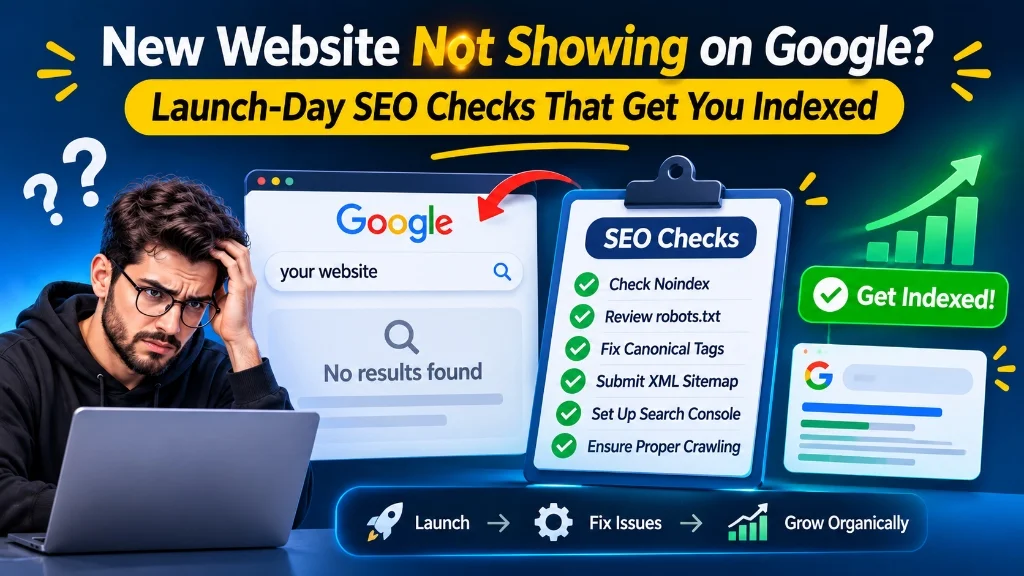
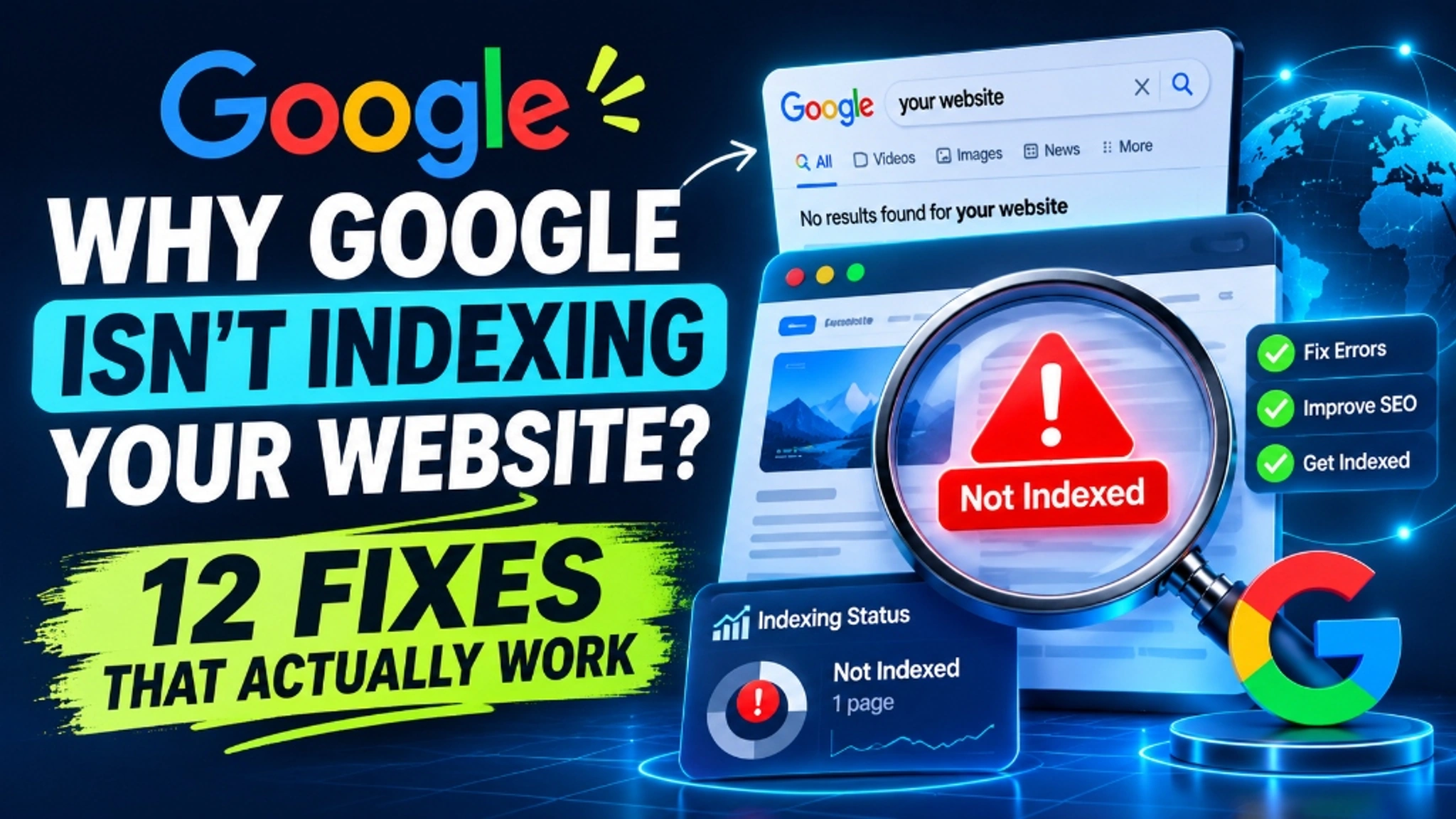
You published the page, submitted it, and waited. Days later, searching for your brand or the exact page title returns nothing. When you have a website not indexing on Google, a page that isn't indexed can't appear in Google results at all, so it brings no organic traffic and no leads, however good the content is.
Indexing problems usually come from a short list of causes, and most can be diagnosed in Search Console within minutes. Below are twelve of them, in the order we would check them, starting with the fixes most likely to solve the problem. Following a structured technical SEO checklist for modern websites establishes a clean baseline across server configurations, response headers, and crawl directives.
First, Confirm the Page Is Really Not Indexed
Paste the exact URL into the URL Inspection tool in Google Search Console. If your website not indexing on Google issue persists, it tells you whether the URL is on Google and, if not, gives a reason. The Page indexing report shows the same reasons across your whole site, grouped by status.
Avoid relying on the site: search operator. It is a rough check, not a reliable count. It's also worth knowing that Google does not promise to index every page it finds. The goal is to remove technical blockers and give Google a good reason to keep each page.
The status tells you where to look:
- Blocked or excluded by a rule: noindex, robots.txt or canonical problems (fixes 1 to 3).
- Not found or not crawled: weak links, sitemap or server issues (fixes 4 to 7).
- Crawled but not indexed: a quality or rendering issue (fixes 8 and 9).
The 12 Fixes
1. Remove Accidental Noindex Directives
A noindex instruction, either in a meta robots tag or in an X-Robots-Tag HTTP header, tells Google to keep the page out of its index. It often slips into production after launch, copied over from a staging setup. In WordPress, the "Discourage search engines from indexing this site" option under Settings → Reading does the same thing.
Check the page source and the response headers. URL Inspection will report "noindex" if it detects one.
2. Check That robots.txt Isn't Blocking Googlebot
A rule such as Disallow: / stops Google from crawling your pages. There is a catch: if Google can't crawl a page, it can't see a noindex tag on it either, so a blocked URL can linger in results with no description.
Review your robots.txt file and the robots.txt report in Search Console. Remove any rule that covers pages you want indexed.
3. Fix Wrong or Conflicting Canonical Tags
A canonical tag tells Google which URL is the preferred version. If it points to a different page, the homepage, or an old staging domain, Google may treat your page as a duplicate and skip it. You'll see statuses such as "Alternate page with proper canonical tag" or "Duplicate, Google chose different canonical than user".
Give each page a self-referencing canonical that matches your preferred protocol and domain version. Canonicals are treated as a strong hint rather than a command, so keep your internal links and sitemap consistent with them.
4. Clean Up Your XML Sitemap
A sitemap helps Google discover URLs, but it doesn't guarantee indexing. Make sure it is submitted in Search Console and lists only canonical, indexable URLs that return a normal 200 response. Remove redirected, broken and noindex pages, because a messy sitemap sends mixed signals. The Sitemaps report will flag fetch and parsing errors.
5. Add Real Internal Links
A page with no internal links pointing to it, often called an orphan page, is hard for Google to find and easy for it to treat as unimportant. This is a common cause of a website not indexing on Google, often showing as "Discovered - currently not indexed".
Link to new pages from relevant, already-indexed pages, such as related articles, category pages or your navigation. Use descriptive anchor text and standard <a href> links rather than click handlers.
6. Resolve Server Errors and Slow Responses
If Googlebot keeps hitting 5xx errors, timeouts or DNS failures, it may reduce how often it crawls your site. Firewalls, CDN rules and security plugins sometimes block Googlebot by mistake.
Check the Crawl stats report in Search Console settings, review your server logs, and make sure legitimate Google crawlers are allowed through. A site that responds reliably gets crawled more reliably.
7. Repair Redirects and Soft 404s
Redirect chains, loops and redirects to unrelated pages waste crawling and can leave the destination unindexed. A soft 404 is a page that returns a normal status but reads like an error or an empty page, so Google treats it as missing.
These routing conflicts frequently arise during major infrastructure overhauls, particularly when migrating WordPress to Next.js without losing SEO where legacy permalinks must map precisely to modern route handlers to preserve link equity.
8. Improve Thin, Duplicate or Low-Value Pages
Large-scale catalogs in ecommerce frequently encounter this barrier when automated product filters, faceted navigation, or boilerplate supplier descriptions create thousands of near-identical URLs that search engines choose to deprioritize.
"Crawled - currently not indexed" means Google fetched the page and chose not to keep it. Templated pages with little unique text, near-duplicates and pages that repeat what already exists elsewhere are typical victims.
There is no technical trick here. Add original information, merge overlapping pages, and use noindex on pages that serve no search purpose. Ask what a visitor would gain from this page that they can't get elsewhere.
9. Make Sure JavaScript Content Can Be Rendered
Google can process JavaScript, but rendering is a separate step from crawling and doesn't always go smoothly. Content that loads only after a user interaction, links built without proper anchor tags, and blocked script files can all leave Google with an empty or incomplete page.
In URL Inspection, use "View tested page" and compare the rendered HTML with what you expect. Adopting server-side rendering or static generation within Next.js SEO best practices guarantees search bots receive full semantic DOM content on their initial crawl pass without waiting for client execution.
10. Check You're Using the Right Search Console Property
Search Console treats http and https, and www and non-www, as different URL prefix properties. If you inspect the wrong version, your data can look empty or misleading. A Domain property covers every variant. Confirm that your preferred version is the one that loads, and that the other versions redirect to it.
11. Rule Out Manual Actions and Security Issues
Open the Manual actions and Security issues reports. Hacked content, injected spam links or a manual action for spam can cause pages to drop out of results. If either report shows a problem, fix the cause and submit a reconsideration request where Search Console offers one.
12. Request Indexing Properly, Then Be Patient
Once you have fixed the underlying issue, use URL Inspection and select "Request indexing". Google limits how many requests you can send, and repeating the request for the same URL doesn't speed anything up.
New domains in particular can take days or even weeks to appear. Give Google more reasons to visit: earn links from reputable sites, keep your site structure clear, and keep publishing pages worth indexing.
If Pages Still Aren't Indexed
When every check above comes back clean and quality is sound, the cause is usually something that needs a closer look, such as crawl behaviour in server logs, rendering differences, or site architecture. Engineering support through a dedicated technical SEO service identifies rendering disparities and resolves complex platform conflicts at the codebase level.
Conclusion
When you face a website not indexing on Google, the cause is rarely mysterious. Start with the explicit blockers: noindex, robots.txt and canonical tags. Then check discovery signals such as the sitemap and internal links, then server health, rendering and content quality. Fix the cause, request indexing once, and give Google time to respond. If the problem persists, a structured technical review will find what a quick check misses.
If unindexed pages are holding back your organic search traffic or you need senior developers to resolve Search Console errors, reach out through our contact page to diagnose your site architecture and get indexation back on track.
Struggling With Indexing or Search Console Errors?
Uncover hidden crawl blocks, canonical conflicts, and JavaScript rendering obstacles with a comprehensive technical SEO audit.
Book an Indexing & Technical SEO Audit